Showing posts with label control. Show all posts

Wednesday, September 28, 2016

Cara Buka Control Panel di Windows 8

Cara Buka Control Panel di Windows 8


Pertama kali saya menginstal Windows 8 DP, itu cukup upaya frustasi, mencoba mencari tombol Control panel dan shutdown atau restart di Windows 8. Sejujurnya, saya tidak pernah membayangkan saya perlu posting tentang bagaimana Windows Control panel dan shutdown atau restart, tapi melihat jumlah pertanyaan tentang topik ini, saya jelaskan cara Anda dapat membuka Control panel dan shutdown atau restart di Windows 8. Anda dapat melihat lebih lanjut tentang bagaimana melakukan shutdown atau restart di Windows 8 klik disini

Pada Windows XP, Vista dan Windows 7, orang bisa buka Control Panel dengan mengklik tombol menu Start. Seperti Anda semua tahu, Microsoft telah menghilangkan menu Start dan Mulai bola dari Windows 8. Jadi, bagaimana membuka Control Panel pada Windows 8? Sangat mudah, ikuti saja salah satu metode yang disebutkan di bawah ini untuk membuka Control Panel pada Windows 8.


1: Pindahkan kursor mouse ke sudut kanan bawah layar lalu klik kanan untuk menampilkan menu kecil. Menu ini memberi Anda akses cepat ke beberapa tugas administrasi umum, termasuk Control Panel.


2: Beralih ke layar Mulai, ketik Control Paneldan kemudian tekan tombol enter untuk memulai hal yang sama. Perhatikan bahwa dalam Windows 8, Anda tidak perlu membuka panel pencarian untuk mencari aplikasi. Beralih ke layar Start dan mulai mengetik untuk mencari item.


3: Secara bersamaan tekan Windows + R kunci untuk membuka dialog Run. Dalam kotak, ketik control.exe lalu tekan tombol enter untuk memulai Control Panel.


4:Pindahkan kursor mouse ke sudut atas atau kanan bawah layar untuk melihat Bar Mantra, klik pada Pengaturan pesona, dan kemudian klik Control Panel untuk meluncurkan sama. Jika Anda menjalankan Windows 8 pada perangkat tablet atau sentuh, geser dari tepi kanan layar untuk melihat Bar Mantra.


5: Anda juga dapat pin Control Panel ke layar Mulai untuk akses cepat. Untuk pin ke Start, ketik Control Panel ketika Anda berada di layar Start, klik kanan pada hasil pencarian Control Panel, kemudian pilih Pin to Start pilihan. Anda juga dapat pin Control Panel ke taskbar.


Itulah Cara buka control panel di Windows 8 semoga bermanfaat selamat mencoba.

Artikel terkait:

  • Cara untuk mempercepat windows pc. 
  • Dapatkan tombol keys shortcut di Windows 8. 
  • Cara shut down atau reboot pc di Windows 8. 
  • Cara aktifkan boot ke safe mode di Windows 8. 
  • Produk license key Windows 8. 
  • Cara mengubah bahasa di google chrome. 
  • Cara manual mempercepat shut-down.


download now

Monday, September 26, 2016

Remotely Control Your Window 7 and 8 PC with Microsoft RDP from Android Phone

Remotely Control Your Window 7 and 8 PC with Microsoft RDP from Android Phone


We all know Windows has its own RDP(Remote Desktop) feature. With this feature we can control any Windows System from from anywhere from his ip and username. Here I tell you how can you connect your PC with your android mobile for remote desktoping. 
This is very helpful when you get tired from PC. If you wanna try something new with with your android smartphone try this.
With this Android app you dont need to install any software because RDP is preinstalled in all Windows PC.
control windows pc from microsoft android app

So follow below steps for Remote Desktop in Android Mobile.

First thing we do is prepare our pc for Remote Desktoping.
In here I use Windows 7 PC.
1. Open System Properties in Windows PC.
system properties in windows 7

2. Open Remote Settings.
remote settings in wondows 7

3. Select Allow Connections Only from Secure Connections
remote settings in wondows 7

4. Click on Apply.


Note:First Make sure that your phone is connect with your pc. If you dont how connect your mobile with pc follow our guide.
Create WiFi hotspot in Windows 7 and share Internet With Android


Now you need to know your ip address. Press Windows Key + R then type cmd and press enter.
In Command prompt type ipconfig . Now you see your local ip address. 


Thats it .Leave Pc and Pick up your phone for next steps.

Move On to Android. 

1. Download Microsoft Remote Desktop from Google Play. 
2. When you open RDP app in below side you see + sign click on that.
Microsoft rdp android app

3. Now You need to Enter Some Information.Example You see below .
Microsoft rdp android apps settings


4.Tap On the checkmark and save your settings and enjoy rdp in android.


control windows 7 from android

control windows 7 from android


control windows 7 from android


Now you simply control your winodws 7/Windows 8 PC from these trick without installing any software. If you wanna watch movie from android through RDP this is not possible with this software. Here I recommend you to download and install Splashtop Software and android app for Android Phone.

Splashtop 2: fast,free, innovative remote desktop for Android

download now

Monday, September 12, 2016

How to Control Your All Downloading Torrents from Any PC Browser or Any Android Mobile

How to Control Your All Downloading Torrents from Any PC Browser or Any Android Mobile


Now days Everybody uses Torrent system for downloading large files like movies and softwares. Torrent is one of the p2p file sharing network. We downloads lots of files from torrent. Mostly People using utorrent and bittorrent client for downloading torrent files.
remote utorrent for android

    Today in this post I tell you How can you control your torrents, when youre away from you computer.
Remote Utorrent is great system for controlling your all torrents from anywhere with any computer and Android Mobile Device. With this system you can add new torrents, remove old torrents, pause and start torrent and many more things.

Also Read:
Remotely Control Your Window 7 and 8 PC with Microsoft RDP from Android Phone 

So How You Setup Utorrent Remote Access in Computer for Utorrent Remote

Go to options > preferences and select "remote" from the list on the left.

Check the box to enable "µTorrent Remote access"

utorrent remote
Choose a Computer name and password and enter it here. Click the "Apply" button. After a few seconds, you should see "Status: Accessible". Close the preferences.
utorrent remote
You can now access your client from anywhere at from any browser by type this URL  https://remote.utorrent.com


When you type Above url you need to login with your computer name and password.
utorrent remote login

utorrent remote login

Utorrent Remote is also available for all android devices. You need to only download Utorrent Remote android app from Google Play Store. With this remote utorrent you can control your all torrents like PC.

utorrent remote android app

So Remote Utorrent is best service for controlling your all PC torrents from anywhere or anypc. Try this service and give your comments in below box.Download Utorrent Remote for Android

download now

Tuesday, August 30, 2016

Control and Play Your PC Game Via a Android Phone with Monect

Control and Play Your PC Game Via a Android Phone with Monect


Using your Android to control your computer is a great way to interact with programs. Your phone can be used a trackpad, or could be used to use a media player using custom controls. Monect lets you take 
things further by turning your Android device into all manner of 
peripherals.
Control and Play Your PC Game Via a Android Phone with Monect

Monect :Control and Play PC Game with Android

This free software can transform your phone into not only a mouse or 
keyboard, but also a joystick, gamepad, media controller and much more. 
It’s great for gamers, but options such as text transfer and 
presentation mode open up additional opportunities.

Monect is a free app that allows you to control the PC over wi-fi or bluetooth by using the Android device.

Here are features:

• Remote Desktop - Touch window on your phone.

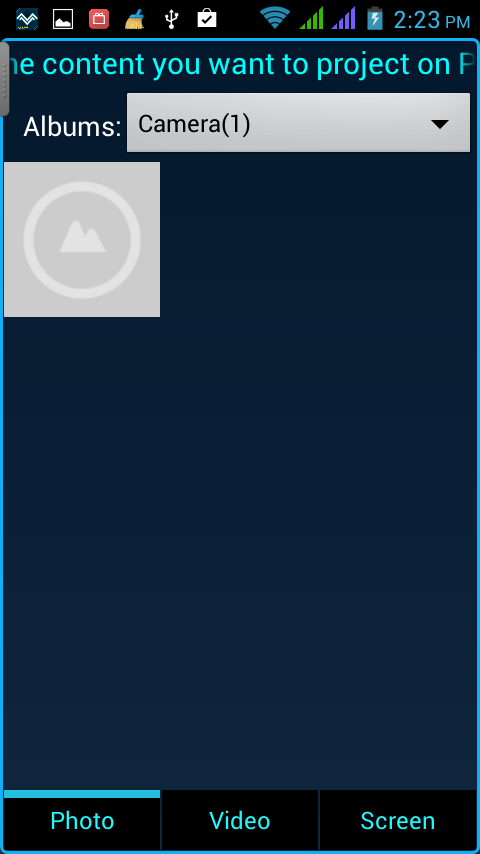
• Projector - share pictures, videos & screen of your phone on PCs big screen.
Control and Play Your PC Game Via a Android Phone with Monect

• Fly mode - Play fly game such as Ace Combat with G-Sensor.

• PPT sync - you can see the ppt pictures and notes directly on your phone even play select & mark.

• RaceMode - Play PC driving game by your phone over wi-fi or bluetooth using G-Sensor!

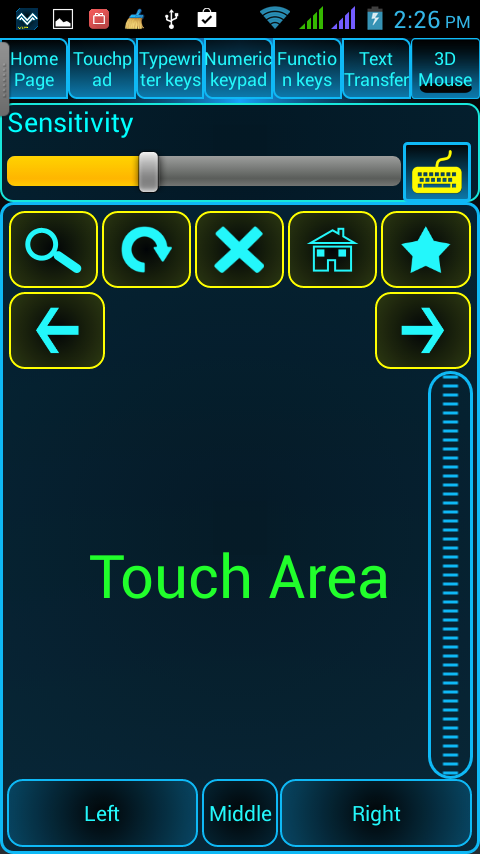
• TouchPad - Simulate touch pad on your phone with many gestures supporting, just like Apples trackpad! 

• My Computer - Exploring PC files on your phone!

• Joystick - Simulate joystick so you can play street fighter or dmc etc.

• FPS mode - Using gyroscope to aim the target just like a real gun in your hand, perfect support COD serial!

• Keyboards - Simulate typewriter keyboard, function keyboard, numeric keyboards...

• Text transfer - Type text on your phone and then transfer text to PC directly with one hit!

• Browser, Media Control- Easily control all kinds of web browser & media player!
Control and Play Your PC Game Via a Android Phone with Monect

• And many more...

Download monect from Google Play Here

DOWNLOAD MONECT for PC HERE


download now

Sunday, August 28, 2016

How to Control Android Phone from PC using Teamviewer Quick Support

How to Control Android Phone from PC using Teamviewer Quick Support


You control PC from Android but this time we control android from PC. We always want something new. 
Remote assistance is great speciality in Windows PC. With this service anybody can resolve you computer issue from controlling your pc. But what do we do with our android phone. Android phone is so smart in these days. 

Remotely Control Your Window 7 and 8 PC with Microsoft RDP from Android Phone

Teamviewer Quick Support

Teamviewer Quick Support is a android app, with this app you can control your android phone from PC and Other Smartphones. You dont do any big setup.

Setup Instructions

1. Download Teamviewer Quick Support Android App
2. In PC download Teamviewer Latest software for Windows
3. If you want control android phone from other android phone so download teamviewer android app.
teamviewer android app

Now open Quick support Teamviewer android app in Phone. In these app you see 9 Digit unique codes. Now you need to enter these unique code from Quicksupport android app into Teamviewer Windows Desktop App and start the Connection.
teamviewer windows app

In mobile you see pop-up click on Allow. Once the connection is successfully made you see your mobile Information in PC. In right corner you see Remote Control Button click on that and allow connection in Phone.
teamviewer windows app

 Now you see your mobile screen in PC. You can control it from anywhere with Internet Connection.
With Quicksupport Android App you can do many task like:

  • Transfer Android Mobile Files.
  • Control and Manage your android apps.
  • Use Android Camera as a Webcam.
  • Do messaging from computer to android
  • See process of android phone.

So this app is helpful when you want help of your friend related to Android.

download now